

Supporting Every Learner: A Guide to the New Course Accessibility Checker in Canvas
The next time you visit one of your classes in Canvas, you might notice there’s a new feature available to you.
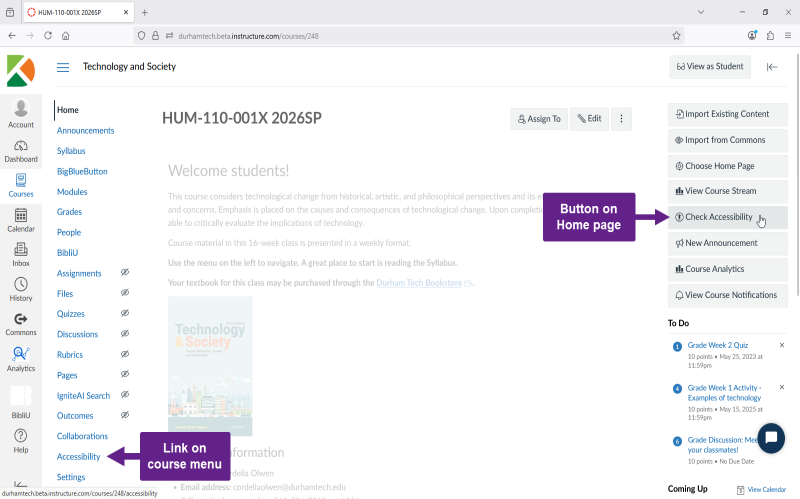
On the righthand side of your course Home page, you’ll see a new Check Accessibility button, and in your course menu, a new navigation link labeled Accessibility will appear. Both of these will take you to the new Course Accessibility Checker.
What is the Course Accessibility Checker?
You may already be familiar with the Accessibility Checker built into the Rich Content Editor (RCE). It appears below the text editor and reviews your content for common accessibility barriers while you are editing.
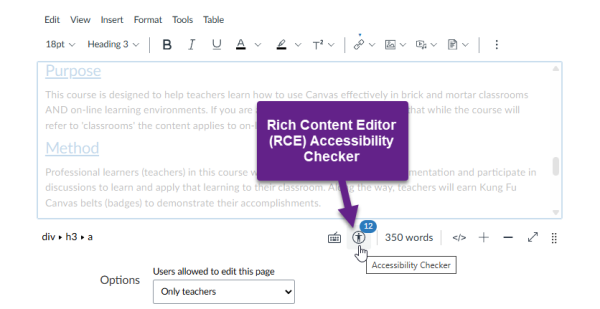
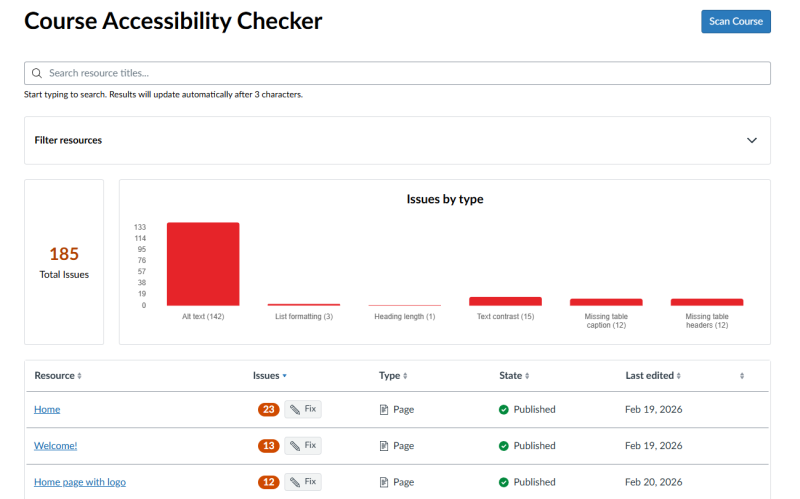
The Course Accessibility Checker expands on this by scanning RCE-created content across your course and gathering flagged accessibility barriers onto one dashboard. This feature allows you to review and correct accessibility flags across an entire course.
What Does the Course Accessibility Checker Scan in My Course?
At this time, the new Course Accessibility Checker scans RCE-created content in:
- Pages
- Assignments (the assignment’s description only)
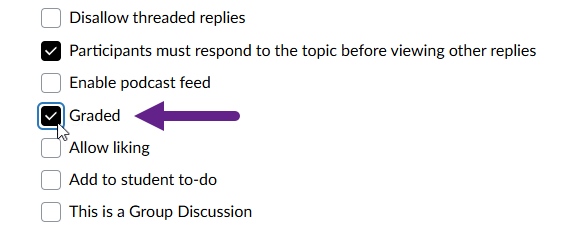
- Discussion topics (“graded” discussion prompts only)
Both accessibility checkers flag the following accessibility issues:
- Insufficient color contrast between text and background
- Skipped heading levels
- Missing alternative text (alt text) for images
- Duplicated hyperlinks
- Tables without header rows
- And more!
Note: The Course Accessibility Checker evaluates content created in the Rich Content Editor. It does NOT scan uploaded files (such as Word documents or presentations) or third-party tools.
Why These Accessibility Issues Matter (and Who They Affect)
The accessibility checkers in Canvas identify what are known as digital accessibility barriers. These are digital design or formatting choices that can prevent students from fully accessing or navigating electronic materials.
These digital barriers particularly affect students who:
- Use screen readers to access text and images (for more information, watch Understanding Assistive Technology: Desktop Screen Readers on YouTube)
- Navigate using a keyboard instead of a mouse
- Benefit from clearly structured content to process information
- Access courses on mobile devices, older hardware, or limited-bandwidth connections
- Study in environments where audio cannot always be used (such as in the library or on public transportation)
Some of the flagged issues, such as skipped heading levels or tables without header rows, may seem like small formatting details; however, they have an influence on how assistive technologies interpret your content. Other issues, such as sufficient color contrast can affect how easily students are able move through your content.
This type of accessibility work is also connected to federal requirements such as ADA Title II and Section 504, but the day-to-day impact is fewer digital barriers and a smoother learning experience for all students. Think of digital accessibility not as redesigning your course but rather something to focus on through small, intentional choices such as clear headings, readable contrast, and alt text for images. The goal is to make digital learning content easier for all students to use, and the new Course Accessibility Checker can help you find those opportunities quickly and address them where they will have the greatest impact.
Visit our Accessibility in Canvas page for more information and to check out an Overview video on how the Course Accessibility Checker works!
Additional Resources
- Canvas Community Resources
Upcoming Instructional Technology Workshops
- AI Community of Practice:
- AI in Canvas
- April 16, 2026 (1 hour) via Teams
- Online Course Review Series:
- Part 7: Access for All: Course Design and Accessibility in Canvas
- April 20, 2026 (1 hour) via Teams
Have a Canvas question? Email us at canvashelp@durhamtech.edu!
Enjoy this article? Please consider subscribing!
(Enter your email address in the “Subscribe” box at the top of this post.)